Contents
As of formcycle version 8.5.5, the process data export can be used to hand out all process data of a client from formcycle, including the associated attachments. This is needed for example, when data is to be transferred or retained. The data is provided as a ZIP file and protected by a password.
An export can be created in two ways:
- In the system settings: One or more clients to which access is granted are selected, and their process data is exported.
- In the client settings: The process data of the client in which the login took place is exported.
Prerequisites
- Enough free storage space is available on the server. An export can be several gigabytes (GB) in size.
- The directory in which formcycle stores the exports is accessible. Read and write access for formcycle is granted there.
- The function is enabled (see section Configuration).
Configuration
|
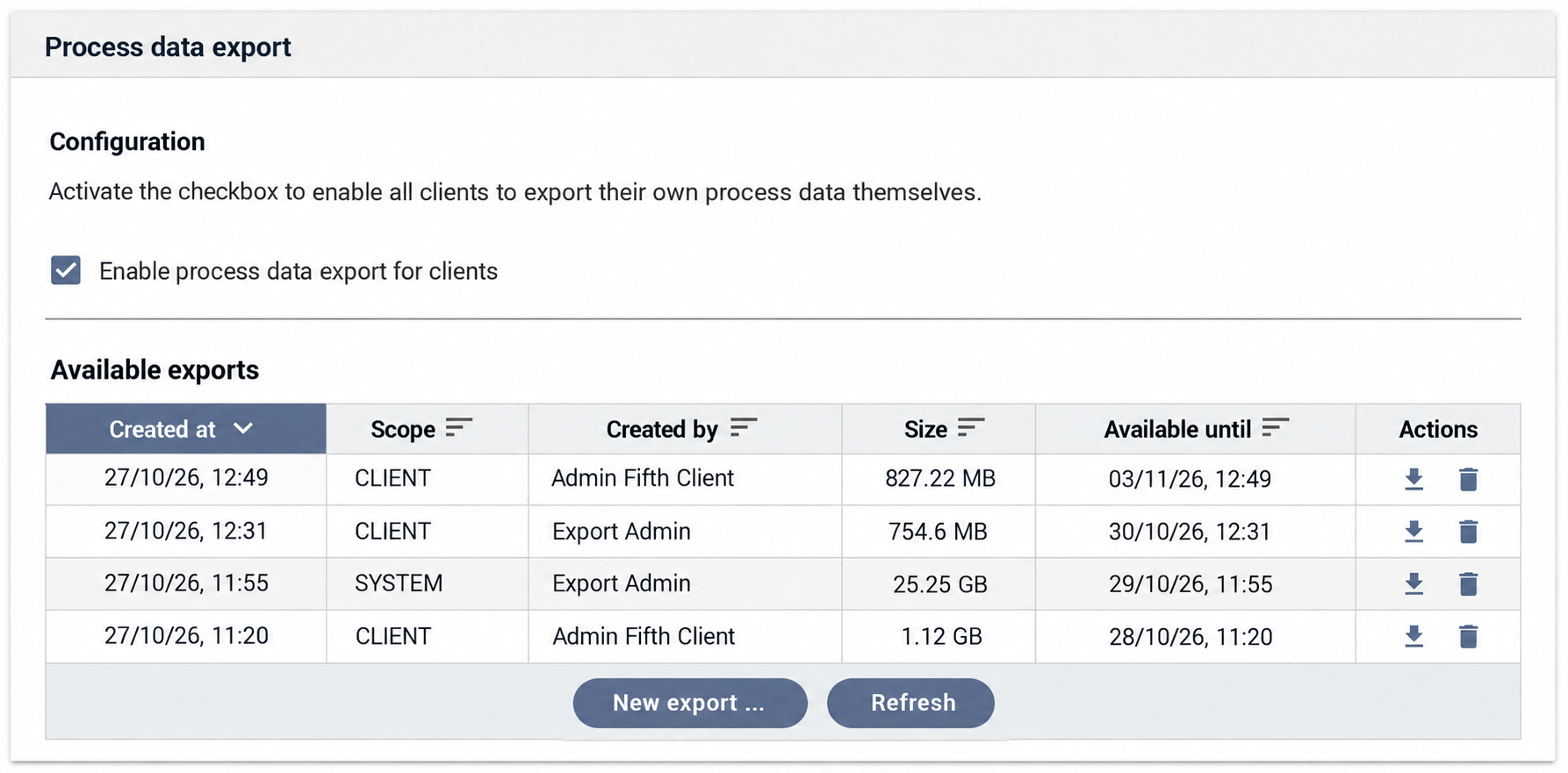
Enabling the export for clients
The system settings determine whether clients may export their process data themselves.
- Open the System settings and select the menu item General.
- Go to the section Process data export and there to the subsection Configuration.
- Enable or disable the checkbox Enable process data export for clients .
If the checkbox is enabled, all clients can export their own process data in the client settings. If it is disabled, exports can only be created in the system settings. The checkbox is checked by default.
Settings in the configuration file
Three further settings are made in the configuration file application.properties. They concern:
- enabling and disabling the function for the entire system (
export.inbox.enabled) - the directory in which the exports are stored (
export.inbox.base_dir) - the default retention period of an export in days (
export.inbox.days_to_keep_export)
A description of the settings and their default values can be found in the table in the article Application properties.
Creating an export in the system settings
|
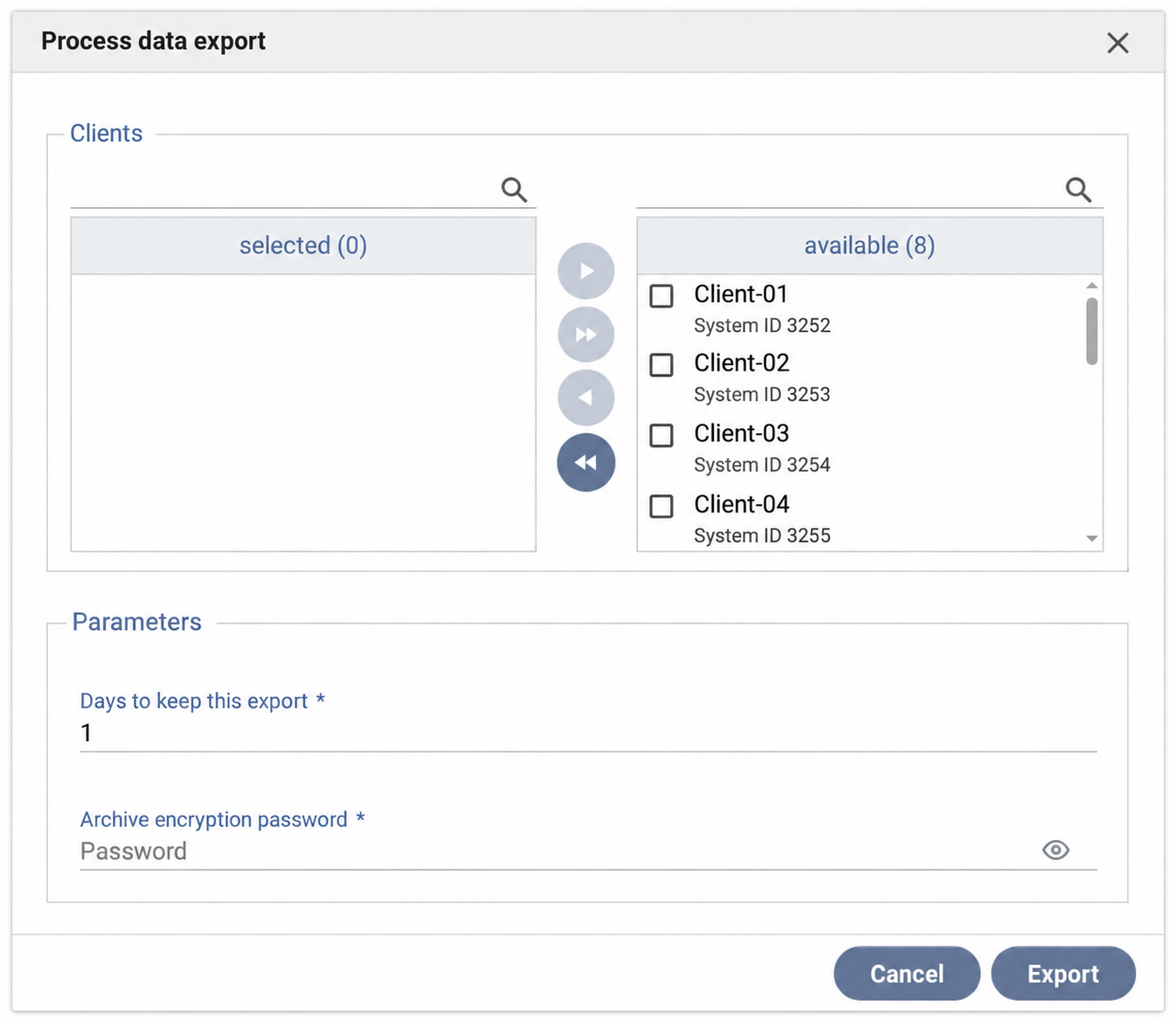
Here, the clients for which process data is exported are determined.
- Open the System settings and select the menu item General.
- Go to the section Process data export and there to the subsection Available exports.
- Click New export .... The dialog Process data export opens.
- In the area Clients, select the desired clients. The right list available shows all clients to which access is granted. The arrow buttons move the desired clients to the left list selected.
- Under Days to keep this export, enter how long the export is to remain available for download. After that, formcycle deletes it automatically.
- Under Archive encryption password, assign a password for the ZIP file. The eye icon shows the password.
- Click Export.
Creating an export in the client settings
|
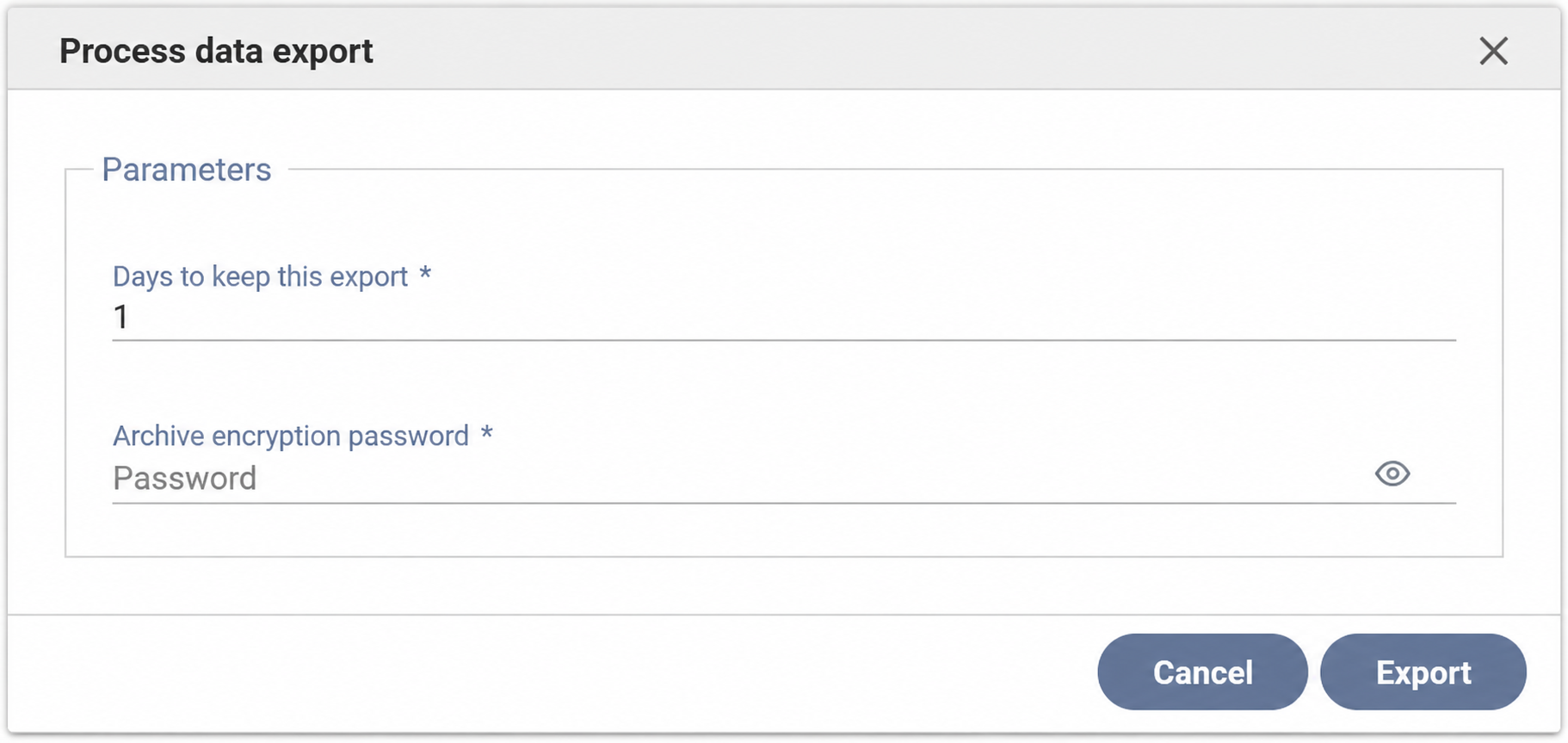
Here, the client in which the login took place is always exported. There is therefore no client selection.
This option is only available if the export is enabled for clients (see section Configuration).
- Select the menu item Client and then Settings.
- Go to the section Process data export.
- Click New export .... The dialog Process data export opens.
- Under Days to keep this export, enter how long the export is to remain available for download.
- Under Archive encryption password, assign a password for the ZIP file.
- Click Export.
Managing existing exports
|
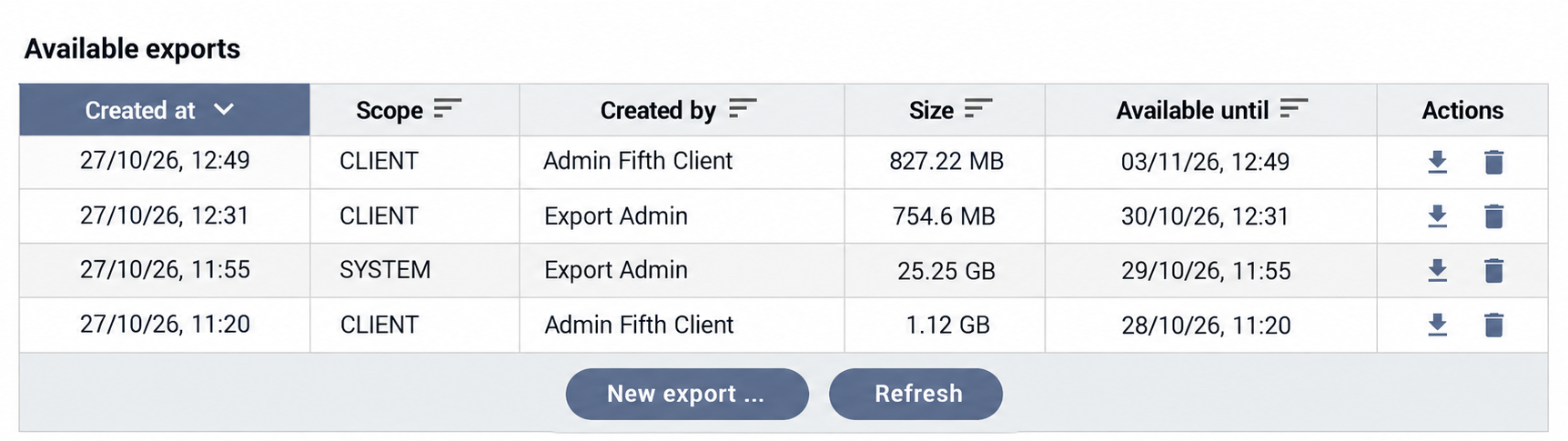
As soon as an export is created, it appears in the table Available exports. Refresh reloads the table.
The table has the following columns:
- Created at: When the export was created.
- Scope: Shows where the export was created. SYSTEM stands for the system settings, MANDANT for the client settings. For MANDANT, a tooltip shows the system ID of the client. The column only exists in the system settings.
- Created by: Who created the export.
- Size: Size of the ZIP file for the download.
- Available until: Until this point in time, the export can be downloaded. After that, formcycle deletes it automatically.
- Actions: Icons for downloading and deleting.
Difference between system and client
In the system settings, all exports of the clients to which access is granted are shown. In the client settings, only the exports of the own client are displayed. The column Area is missing there.
Downloading or deleting an export
- Find the desired export in the table.
- In the column Actions, click the download icon. The password assigned when the export was created is required to open the ZIP file.
- Click the trash icon if an export is no longer needed. This deletes it before the retention period ends.
Was this article helpful?
That’s Great!
Thank you for your feedback
Sorry! We couldn't be helpful
Thank you for your feedback
Feedback sent
We appreciate your effort and will try to fix the article
