8.6.0
When multiple users open the same form in the Designer or the same process in the Inbox at the same time, formcycle indicates this. This makes it possible to see that someone else is working simultaneously before conflicting changes occur.
The display is for informational purposes only. Forms and processes are not locked.
Contents
Requirements
The information is visible to users who are logged into the backend and have access to the respective client. Applicants and other persons without backend access do not see any notifications.
Concurrent editing in the Form Designer
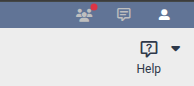
When a form is opened in the Designer, a person icon with the tooltip Concurrent editing appears in the top bar.
If other users are editing the same form, the following occurs:
- A small colored dot appears on the person icon
- Below the top bar, the notification is '[name of the user]' is currently editing this form!

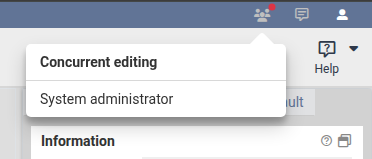
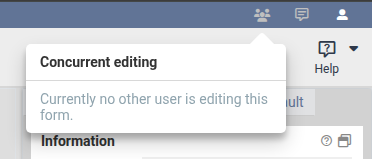
- Clicking the person icon opens a list of all users currently editing the form. If no other user is active, the message Currently no other user is editing this form. is displayed.
Notifications when opening and leaving
When another user opens the form in the Designer, a warning message appears, for example:
'Max Mustermann' is currently editing this form!
|

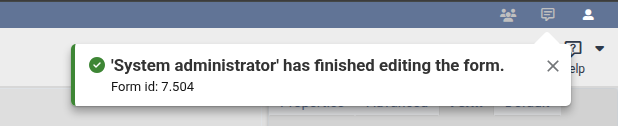
When another user leaves the Designer, an informational message appears, for example:
'Max Mustermann' has finished editing the form.
|
Concurrent editing in the Inbox
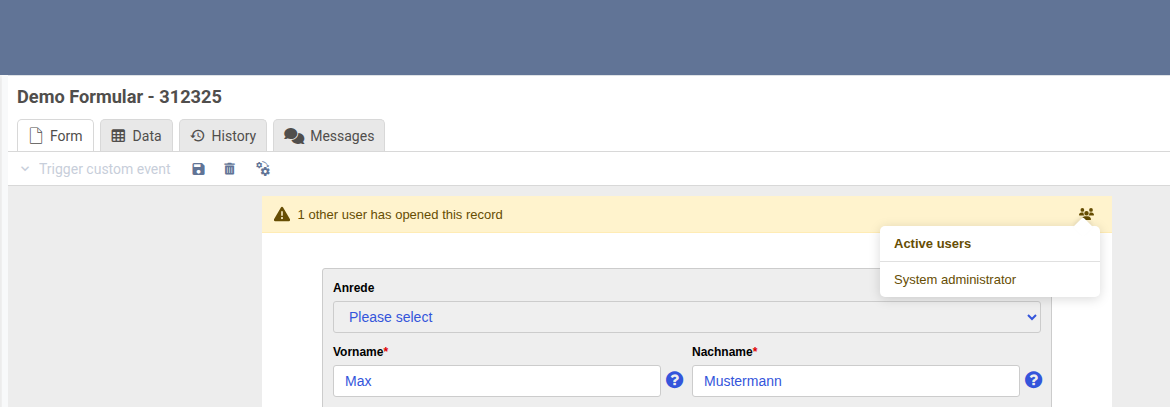
When a process is opened in the Inbox, formcycle checks whether other users have opened the same process.
- If another user has already opened the process, a warning message appears when opening it, for example: 'Anna Schmidt' has opened this process for editing!

- The same message appears if another user opens the process while it is already being worked on.
- When the other user closes the process, an informational message appears, for example: 'Anna Schmidt' has closed this process.

- The yellow notification bar lists users who currently have the process open. If no other users are active, the notification bar is not displayed.
Anonymizing your own name
Each user can decide whether their name is displayed to other users.
- Open the user Profile.
- In the Preferences section, enable the option Anonymize my name in concurent editing notifications.
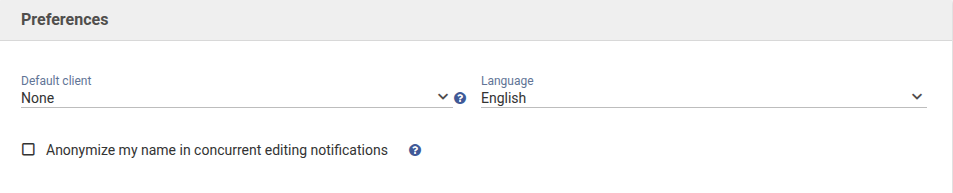
The user's name will then appear as Anonymous user to other users in the Designer and Inbox. The option can be disabled again at any time.
Was this article helpful?
That’s Great!
Thank you for your feedback
Sorry! We couldn't be helpful
Thank you for your feedback
Feedback sent
We appreciate your effort and will try to fix the article
