The user portal includes new events designed to make usage as flexible as possible.
User events
User events make it possible to provide custom actions for a process entry in the process overview of the user portal. Various configuration settings can be used to define under which conditions the corresponding entry is displayed in the action menu.
The event is available in the Workflow Designer: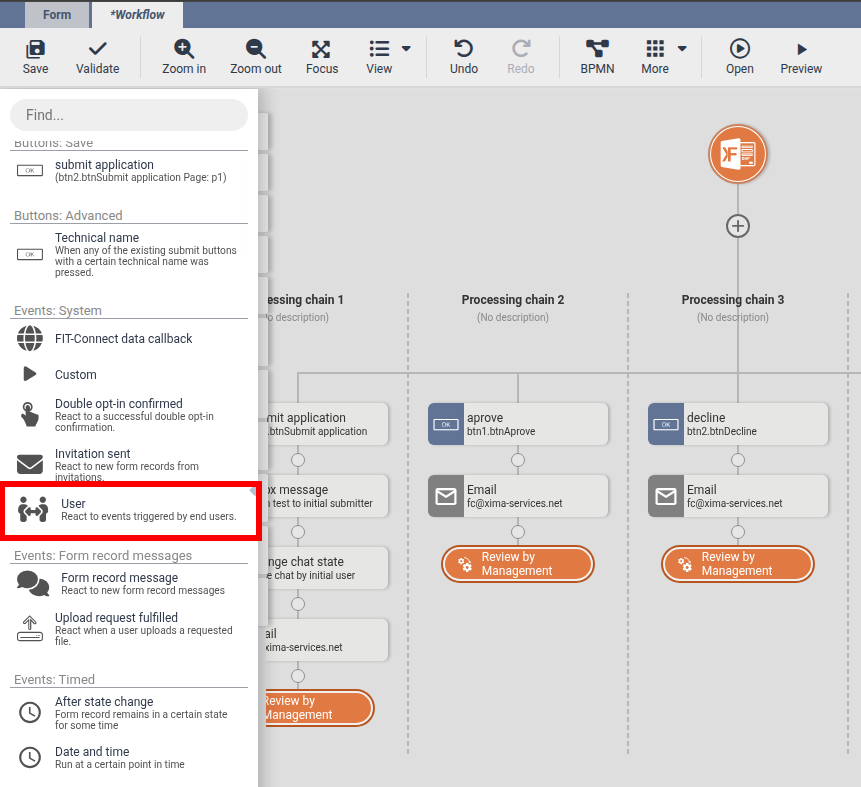
Event properties:
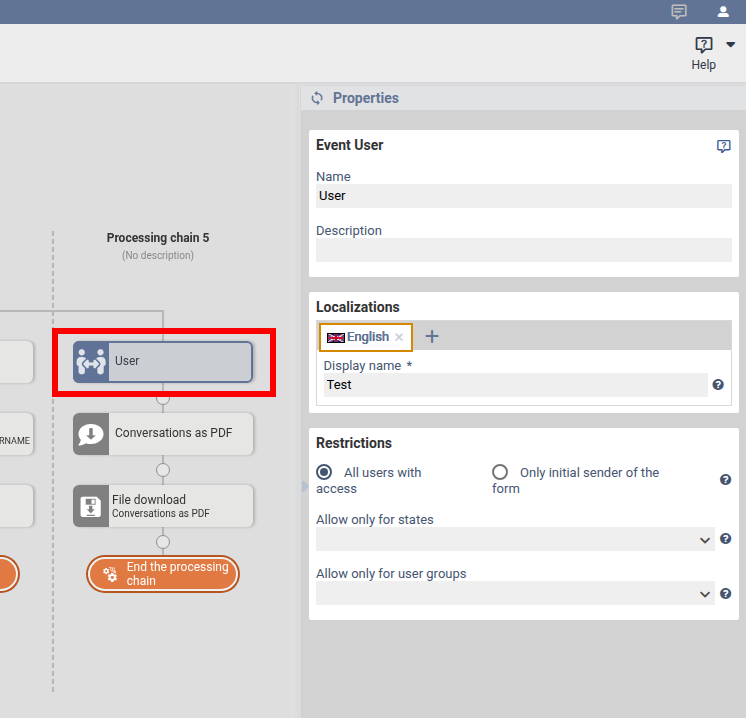
| Name | The name used for display within the workflow. |
| Localizations | Additional languages can be added using the “+” button. |
| Display name | This value is used later for the entry in the action menu of the user pportal. |
| All users with access | Every user who can see this process in the user portal will receive this action menu entry. |
| Only initial sender of the form | Only the initial sender sees this action menu entry. |
| Allow only for state | If a state is selected, the action menu entry is only available in the selected process state. If no state is selected, the action menu entry is always available. |
| Allow only for user groups | If a user group is selected, the action menu entry is only available for the selected user group. If no user group is selected, the action menu entry is always available. |
Event: Upload request fulfilled
This event starts a processing chain as soon as an upload request has been completed successfully.
An upload request is usually initiated in the caseworker inbox, but it can also be triggered via the workflow action “Inbox message”.
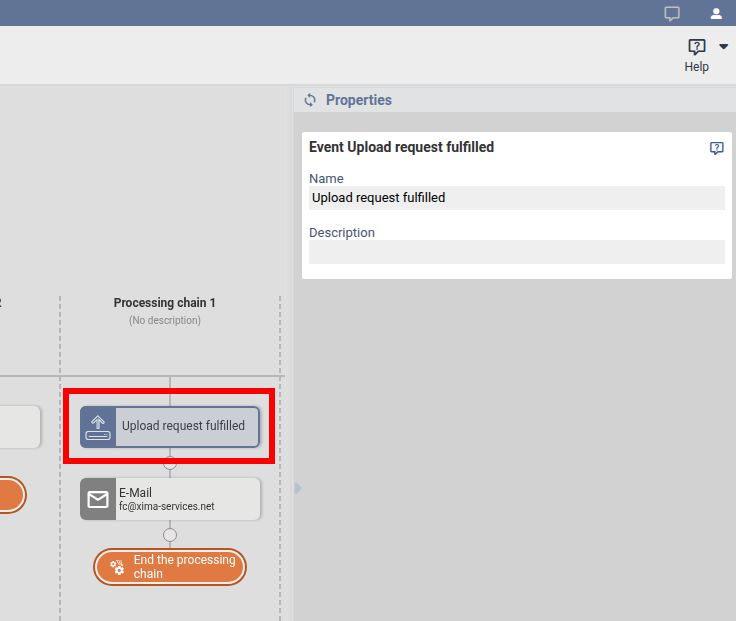
This event only has the property “Name”. This is the name used for display within the workflow.
Event: Process Message
This event starts a processing chain as soon as a process message has been sent.
A message is usually initiated in the caseworker inbox, but it can also be triggered via the workflow action “Inbox message”.
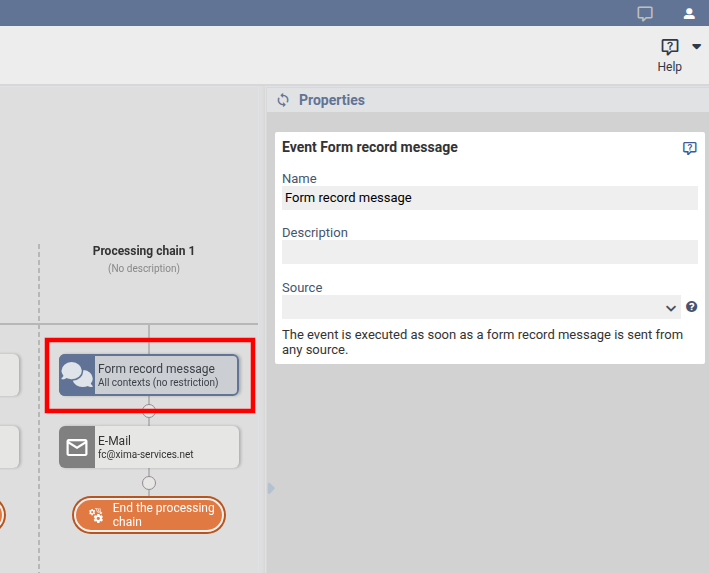
| Name | The name used for display within the workflow. |
| Source | Available options are: Inbox, Portal, Workflow The event / processing chain is triggered only for the selected source. |
Was this article helpful?
That’s Great!
Thank you for your feedback
Sorry! We couldn't be helpful
Thank you for your feedback
Feedback sent
We appreciate your effort and will try to fix the article
